.svg)
Oceanic Theme Documentation:-
This theme builds in HubSpot boilerplate latest functionality. Here we provide you with amazing editing experience with an outstanding web page layout. In an oceanic theme, users can do everything, content editing, page arrangement, section drag and drop, and global theme settings.
Edit the Global Theme settings:-
These settings control the global colours, fonts, website header, typography, buttons, forms, tables, spacing, and footer for all the pages of the theme.
Edit Theme Settings:-
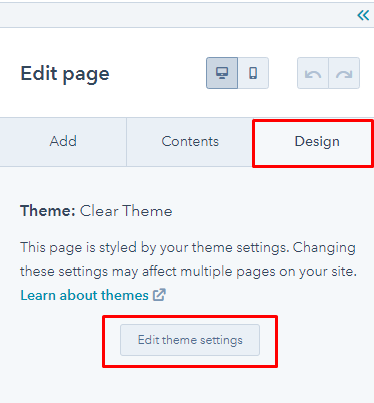
To edit your theme settings, you need to be within the page editor. You can access the page editor by clicking the Design tab given on the left side of the theme template. Then click Edit theme settings.
Global Colors:-
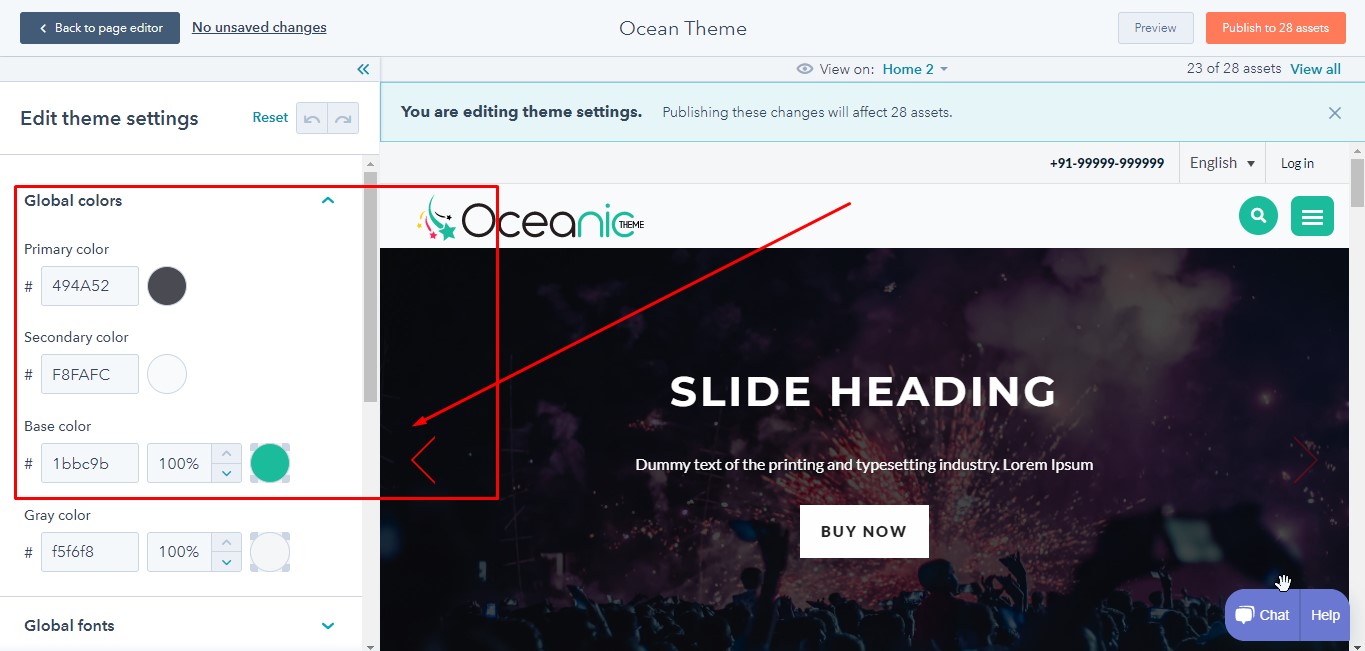
Your Global colour settings apply a primary, secondary, and brand colour to all elements included in all the templates of your theme. These styles will be applied globally to all elements on your website.
Global Fonts:-
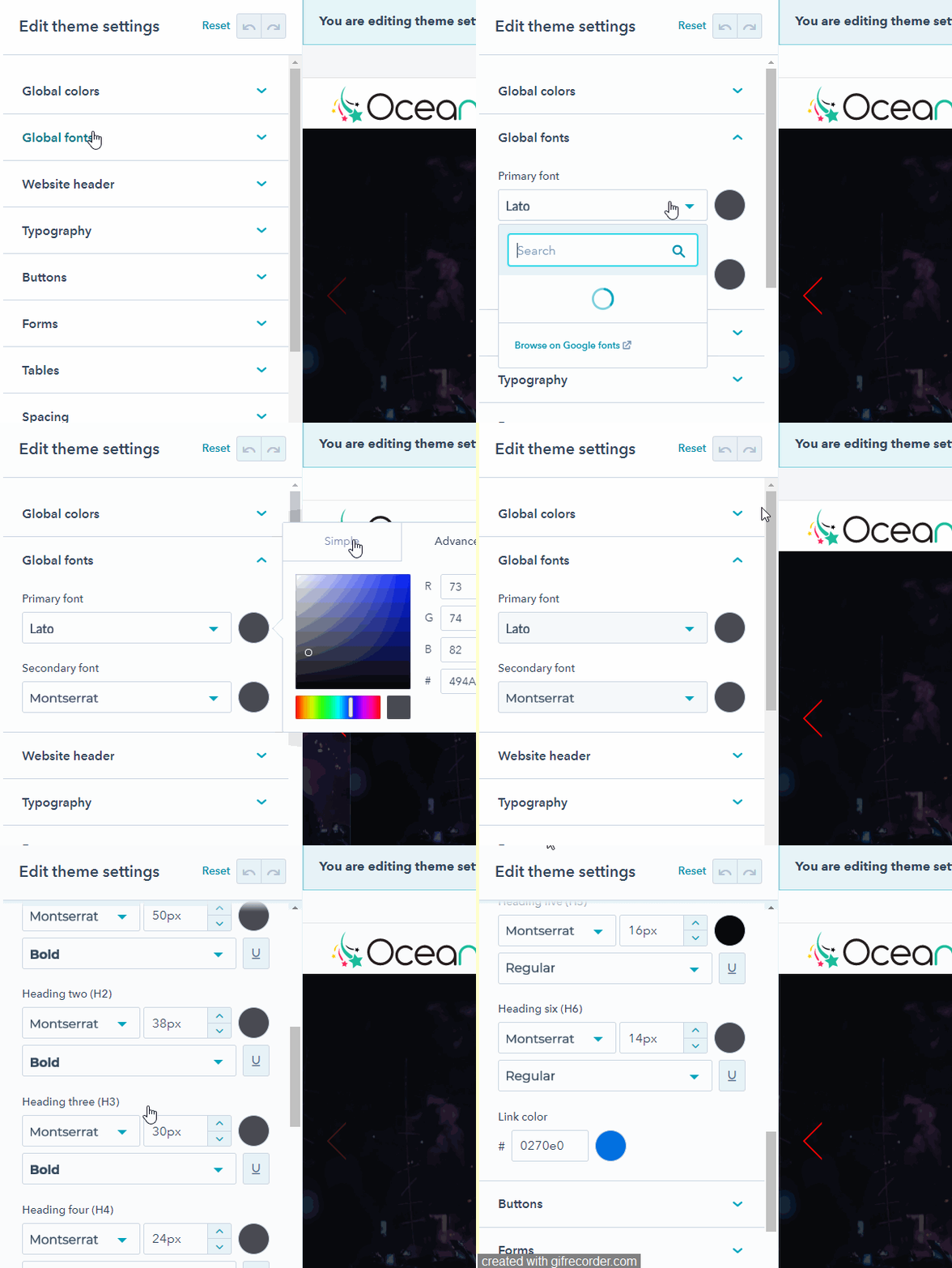
Global Font Settings give you the option to choose a primary and secondary font to apply to the website's headings, buttons, forms and body text. Click the colour bubble to choose primary or secondary font colours. You can either simply choose a color value or click the Advanced tab and choose a specific hexadecimal value with a colour picker.
Website header:-
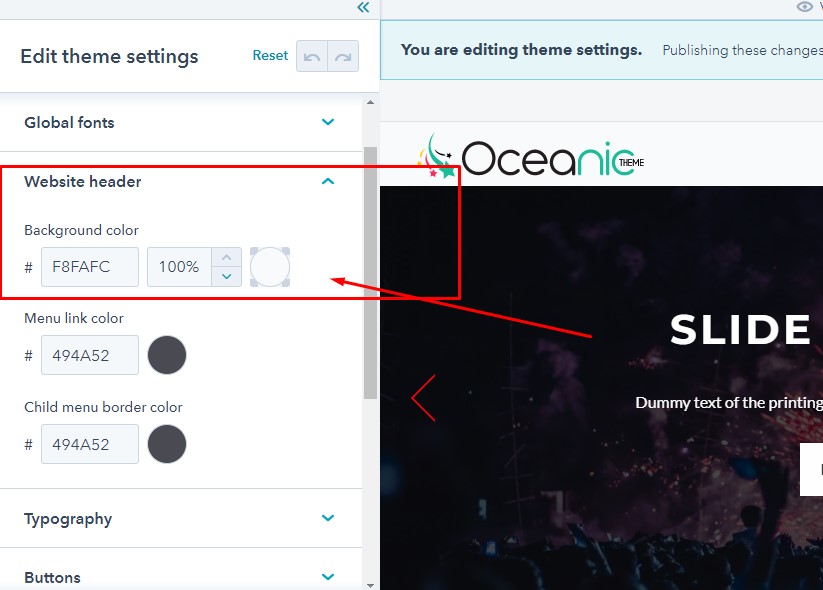
Website header settings control the background colors, menu link color and child menu border color which appear in the page header. Also, you can unable or disable the top header.
Background color: Here you can select the color for the header background of your website.
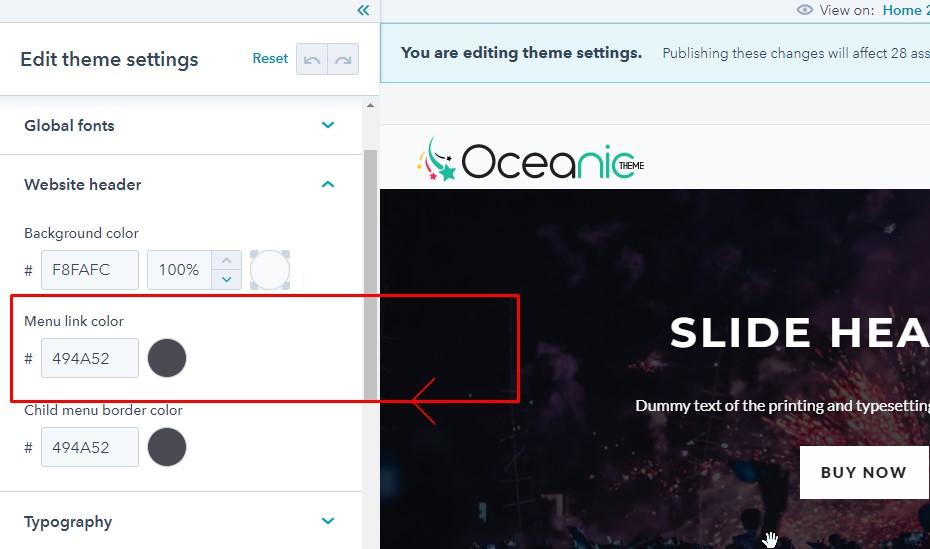
Menu link color: select the color for the menu link and style your font. These styles can only be managed here in your theme settings.
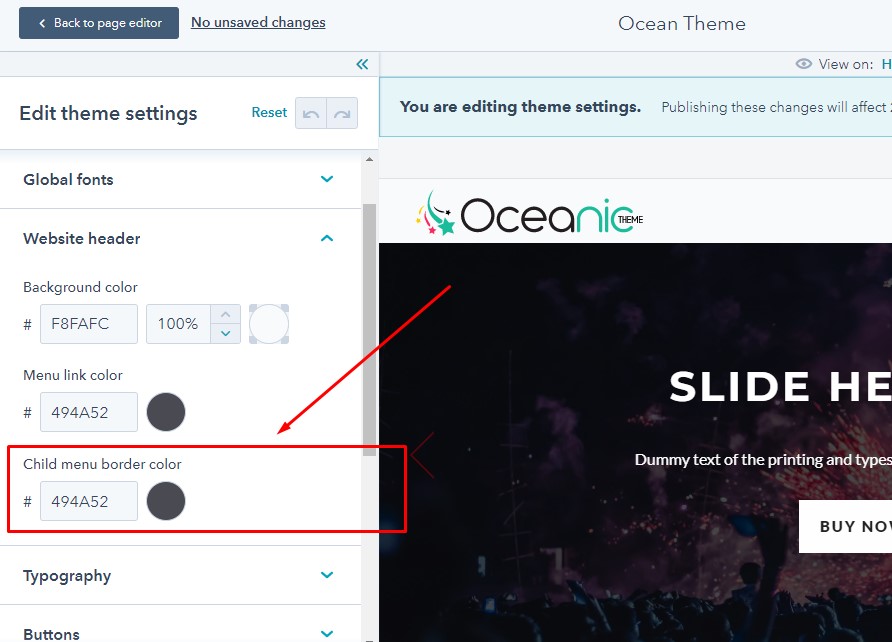
Border color : Here, you can choose the colour of the child menu.
Typography:-
In the typography settings, you can control the fonts applied to the elements in your templates. You can also select custom colors for certain headings, body texts and links in your theme.
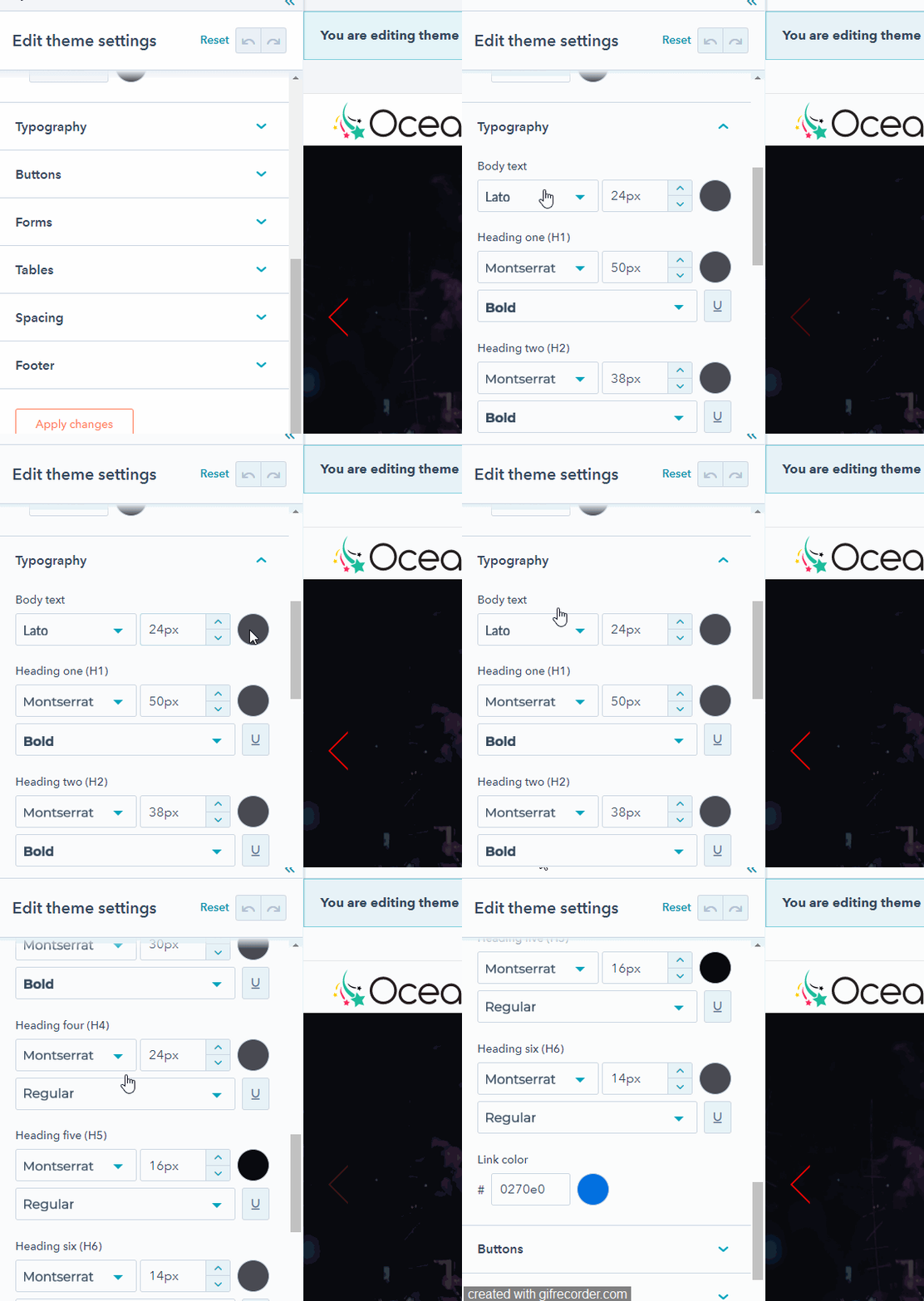
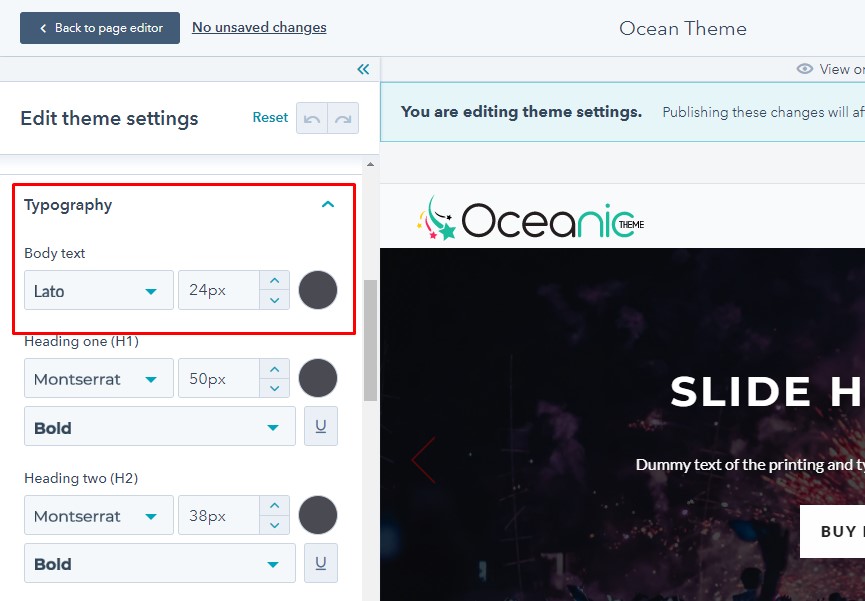
Body : Here you can customize the font, color and text of the body of your page only.
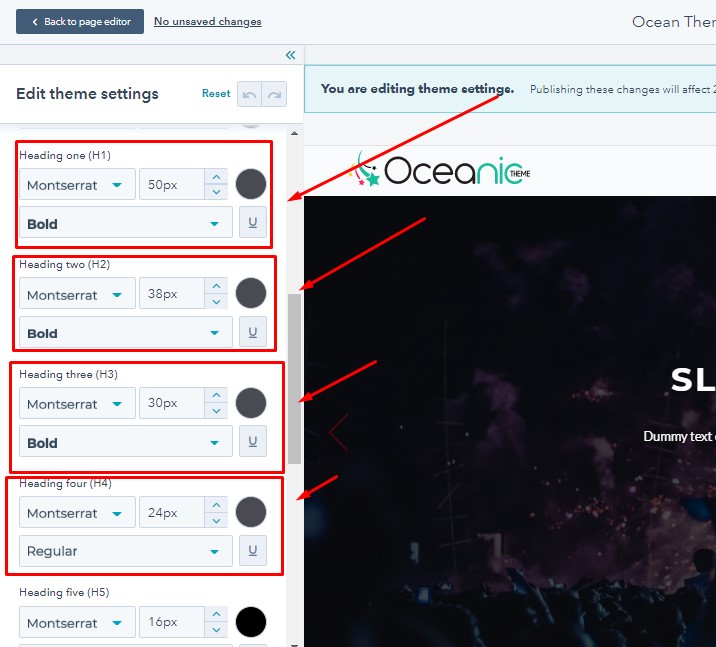
Headings: You can customize the exact font, color, size, and style for any headings which included on your theme.
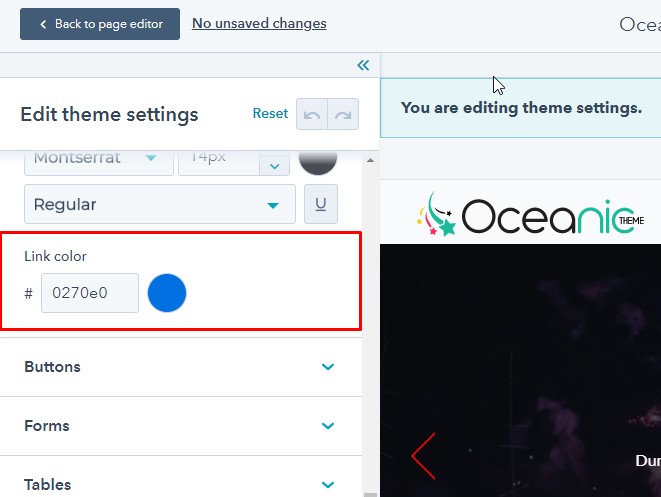
Links: Here you can customize the default color of links on your website. You can also edit the color of your link.
Buttons:-
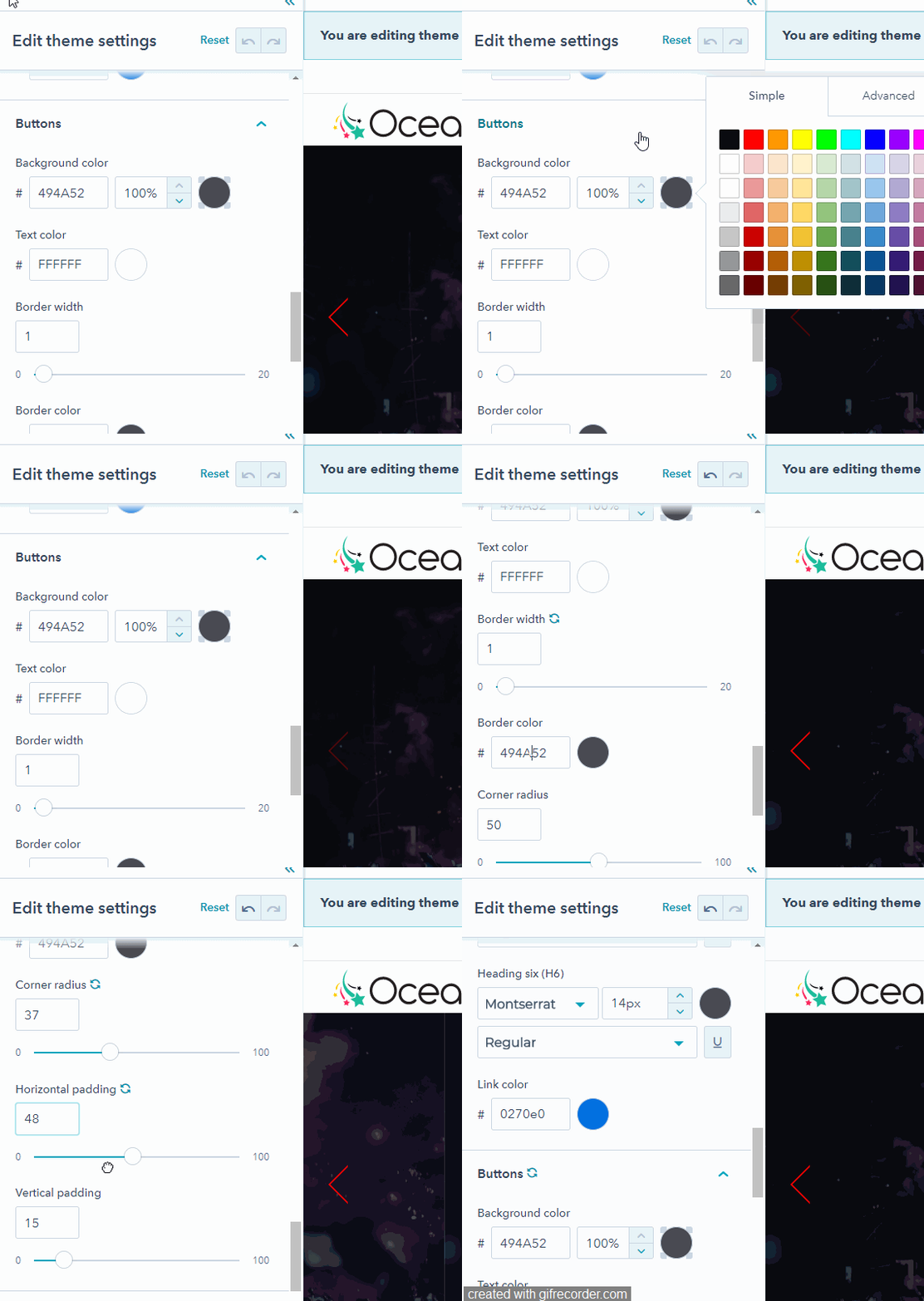
Within the page editor you can set custom colors for background, text, hover text, border, border width, border color, border radius, horizontal padding and vertical padding.
Forms:-
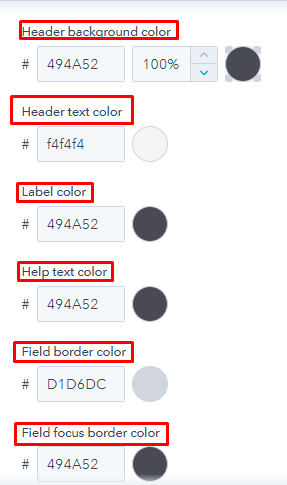
In form settings, you can customize the header background color, header text color, color of label, help text, field border, field focus border.
Tables:-
Set the default colors, fonts, opacity for tables added to your page.
Table head: You can choose custom colors for fonts in your table header, and the background color across the full width of the table head.
Font color: Set the custom color for fonts in your table.
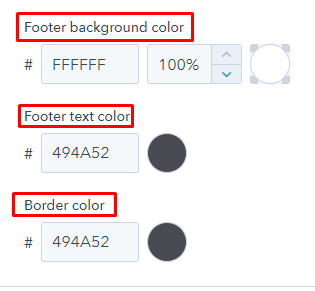
Footer: You can choose custom colors for footer background and text color.

Spacing :-
Your theme settings for spacing, control the vertical spacing and maximum width of your page content in between elements on your page.
Footer:-
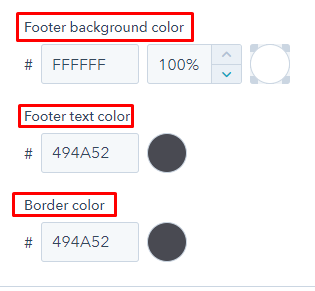
In this setting, you can choose the custom background color and its opacity. Also you can choose the color of the text.
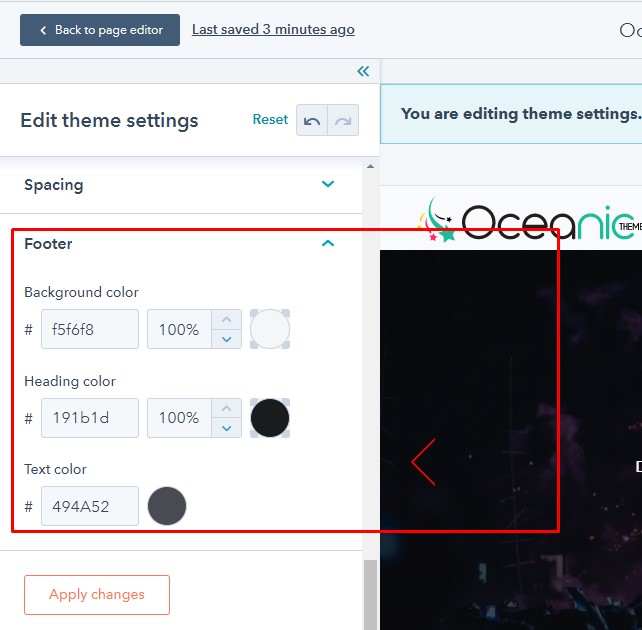
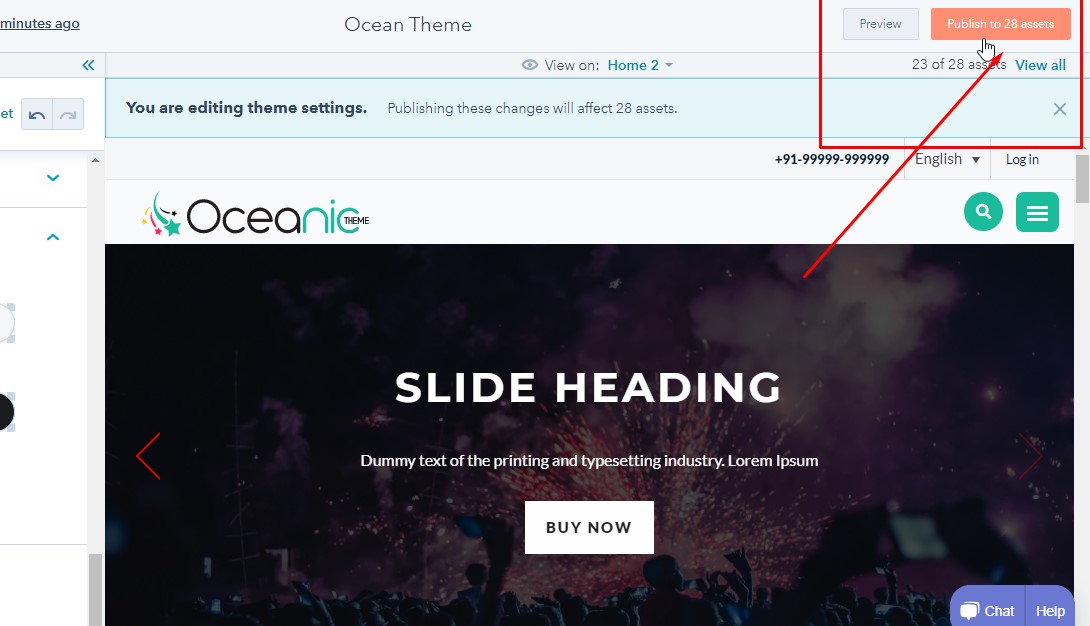
After all the editing, click on the Apply changes in the page editor.Once you are done with the editing, click publish or update button given on the top right side.
Webpage Edit Section:-
Home page and other pages have included multiple module and some hubspot default module. Which our webpage more easy to use and and full edit options.
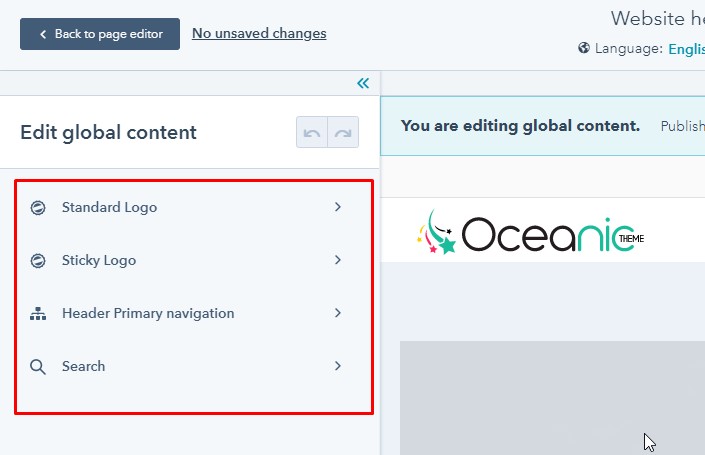
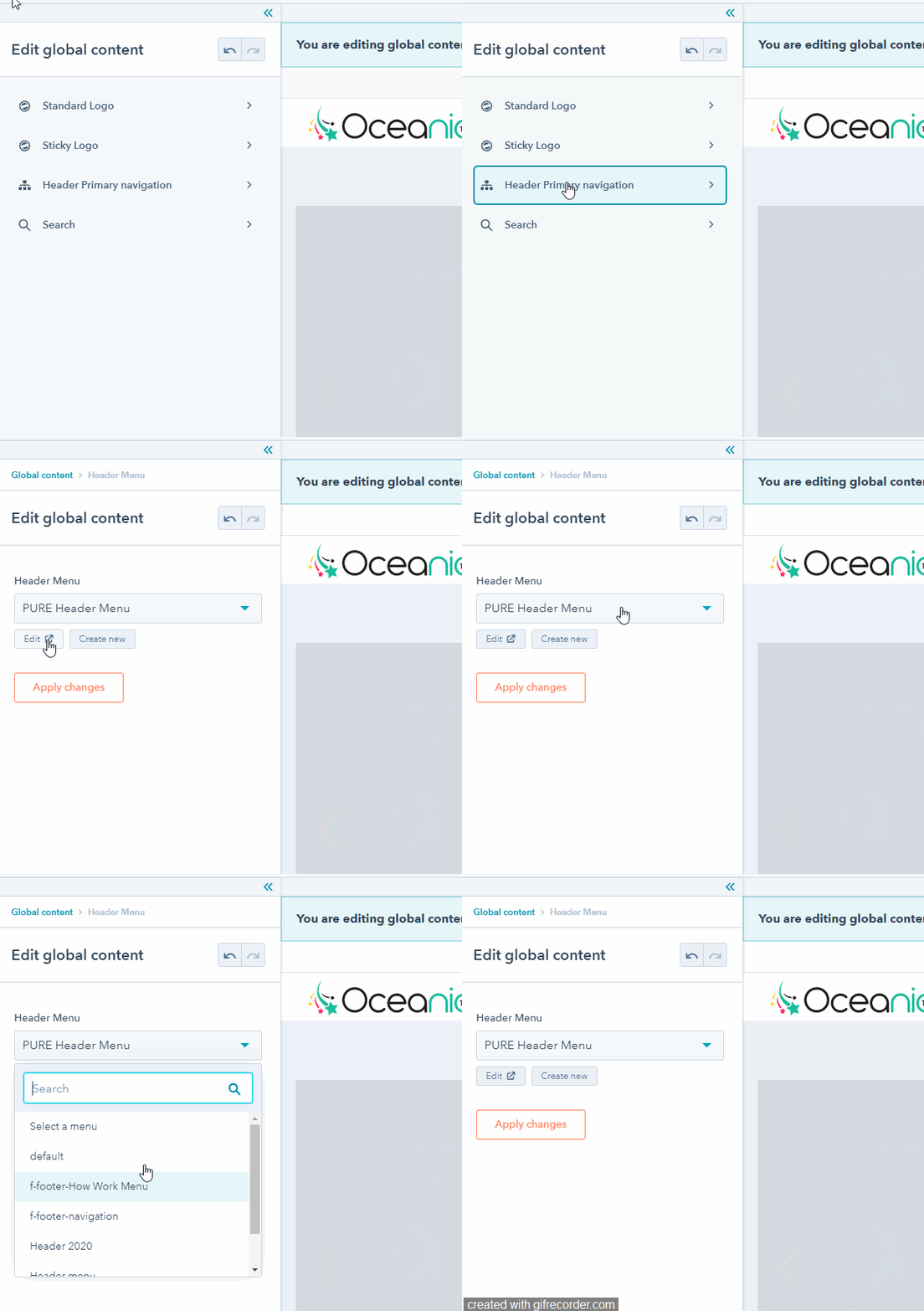
Edit Header Section :-To edit the header section, please click on the header section and its will display the edit options. This settings includes navigation, logo and other content edit options.
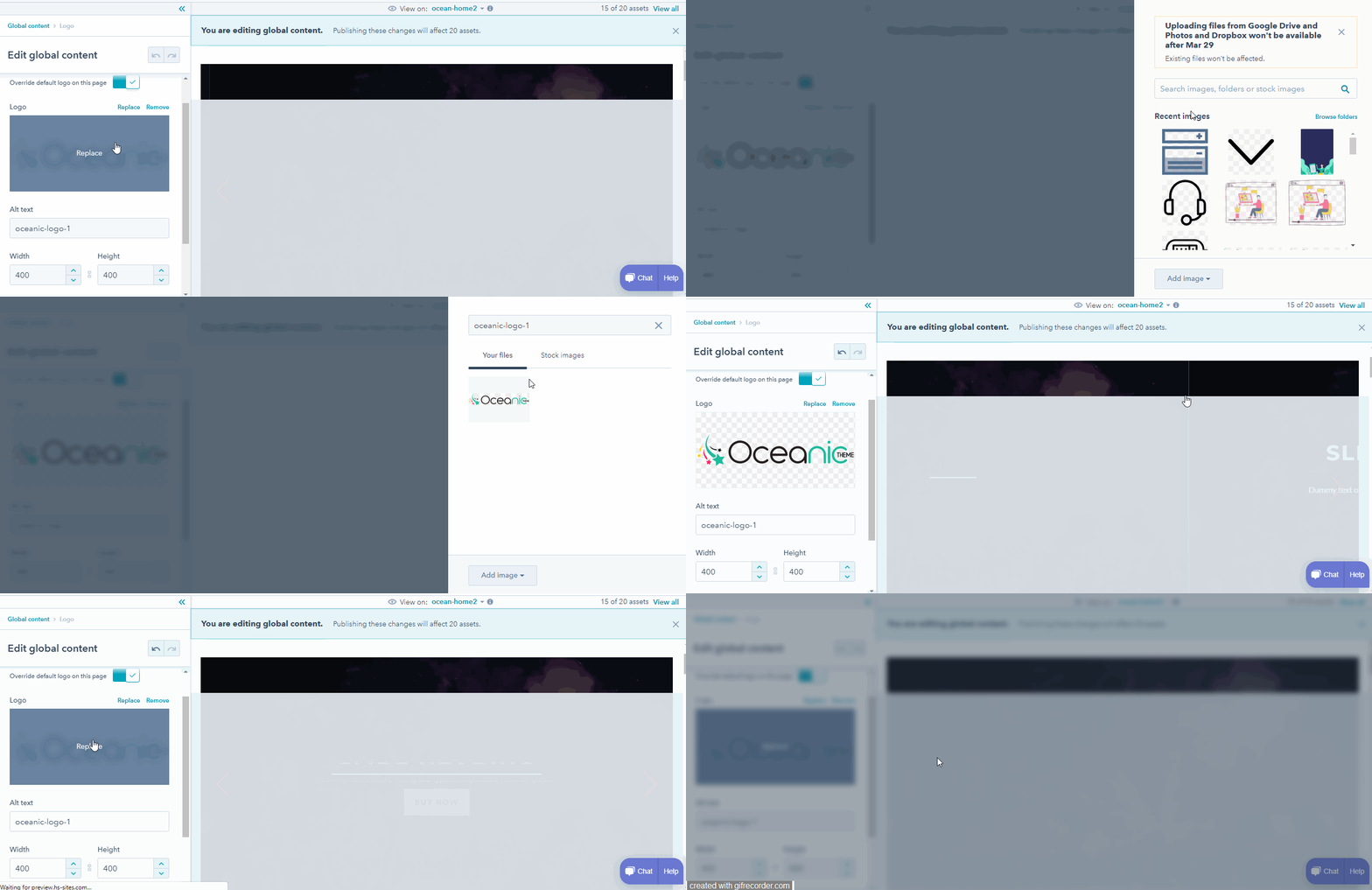
Edit Logo :- Please click on logo option to edit the website logo. With this logo setting you can update the logo in all over website pages.
Edit Navigations :- with navigation settings you can update the links of header navigation. User can also create their new navigation as per need.
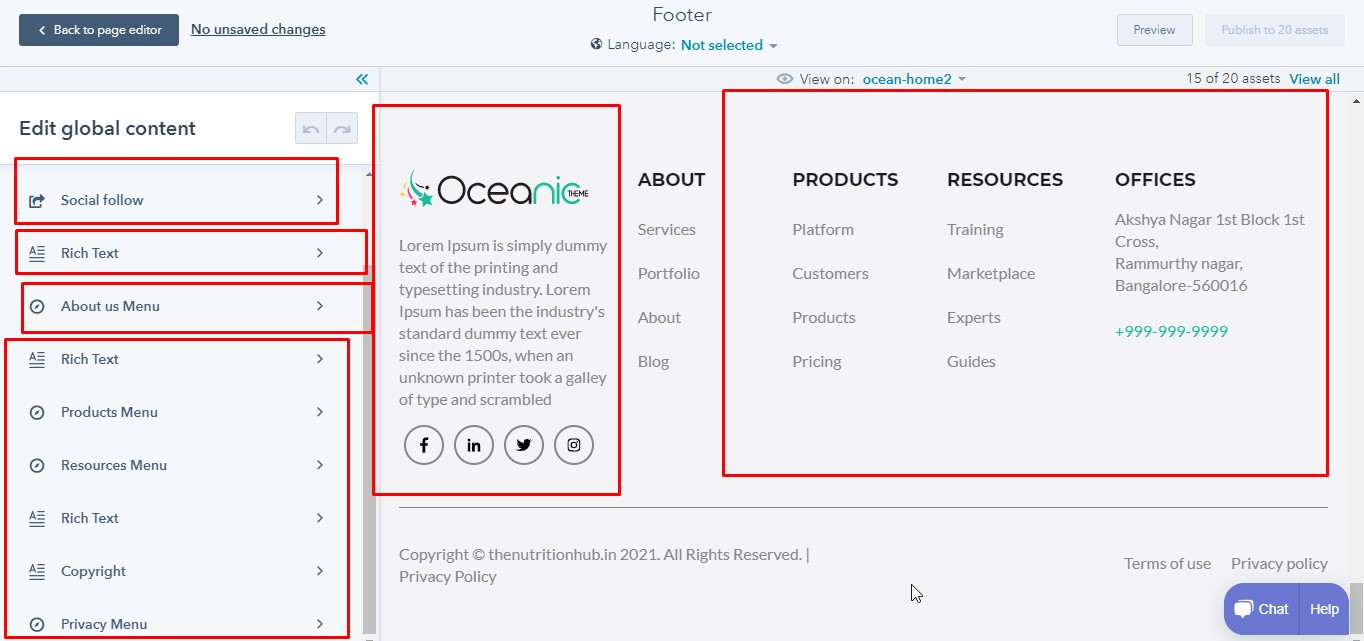
Footer Edit Section:-
Footer section is fully editable and when you edit the footer section, this will update you all website page, which is linked with this theme.
Edit Section Modules:-
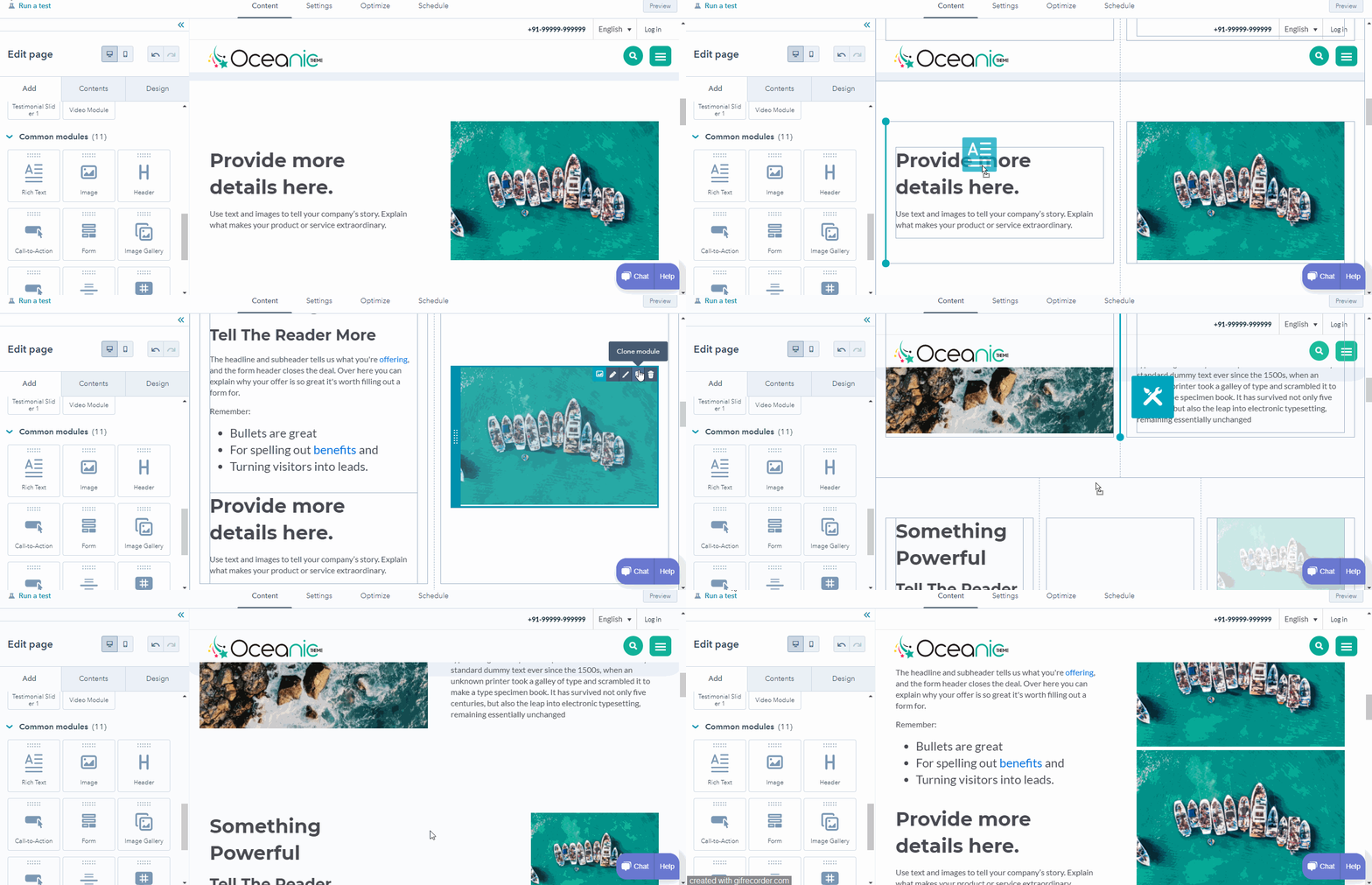
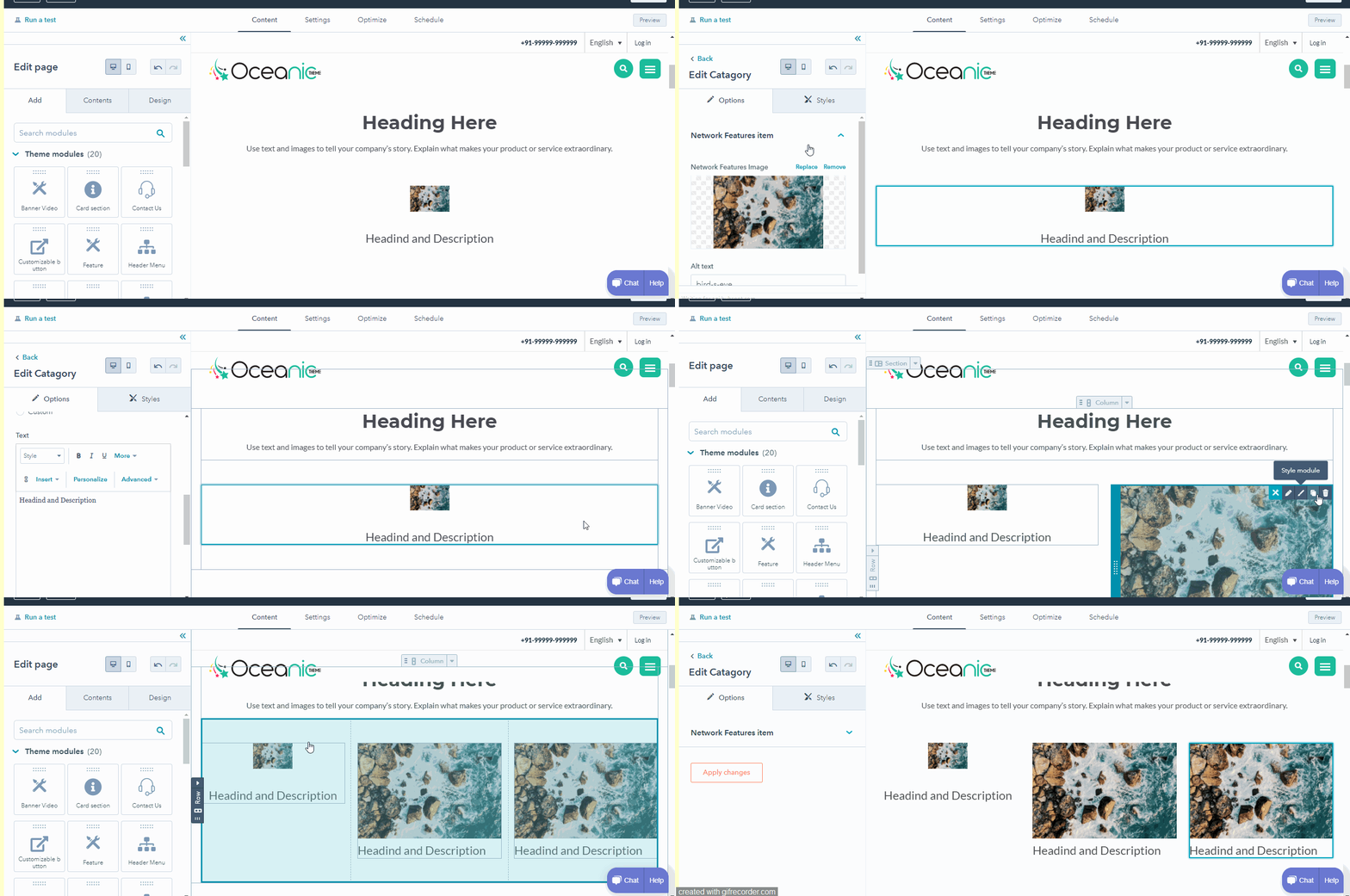
We have build modules according to the to dnd section options. This will help to easily drag the module anywhere in webpage sections. User can clone, edit and delete.
Edit Modules:-
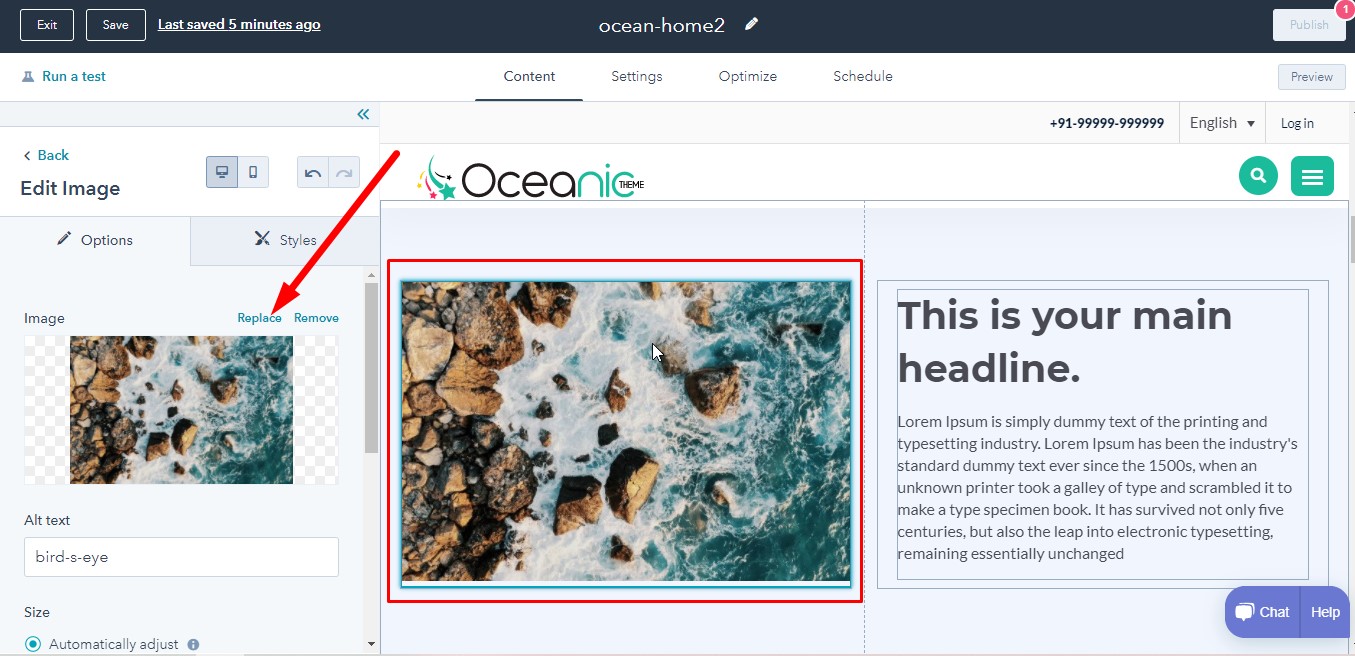
To any module please click on the module and they display all the edit options on the left section of the template editor.